 Mo Explains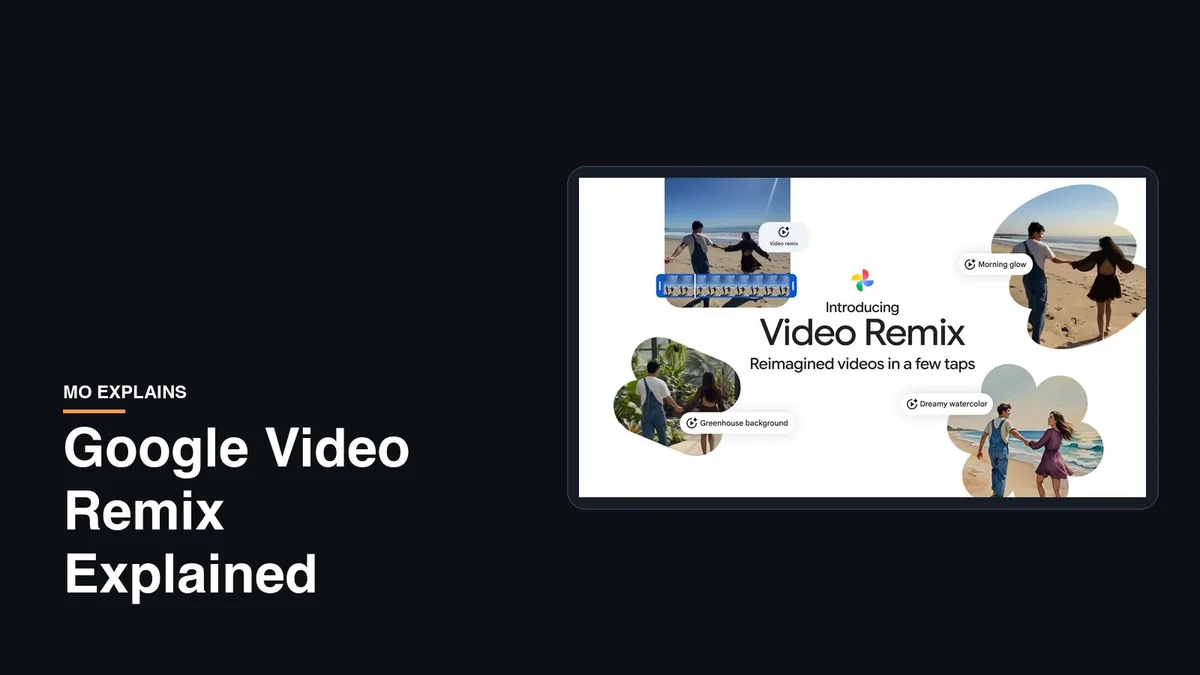
Quick Answer: Google Video Remix is a new AI tool inside Google Photos that transforms videos you already have. It can relight a dark clip, swap out a messy background, or repaint the whole thing in a watercolor or oil-painting style, all in a few taps. It runs on Google's Gemini Omni model and needs a paid Google AI plan.
Last updated July 24, 2026
I have years of stuff sitting in Google Photos. I'm talking clips from trips, random little moments I grabbed on my phone, and videos going back a long way. So when Google added an AI tool that edits those videos right inside the app, I paid attention.
Tools that relight or restyle a clip already exist. I've used a few. The catch was always the same. You export the clip, find another app, and upload it. Then you wait, download it, and drag it back where it belongs. By the time you're done, the moment has gone cold. Google Video Remix skips all of that, because it lives where your videos already are.
That's the part I keep landing on. The editing itself isn't new. Having it built into the place my whole library already lives is what changes how often I'd reach for it.
What Google Video Remix Actually Does
Google Video Remix restyles the videos in your library using Google's Gemini Omni model. You pick a clip, choose a template or type what you want, and it relights the footage, swaps the background, or repaints it in an art style in seconds.
There are three main things it does. It can relight a dark or badly shot clip, so that dim birthday video gets a warm, even glow. It can swap the background behind you for something else, which is handy when the moment is great but the room behind you is a mess. It can also repaint the whole clip as a watercolor, an oil painting, or a rough sketch, which is more of a fun-share thing than a fix.
You don't need to know how to write a prompt. The Create tab gives you prebuilt templates, so you can tap one and go, or describe the look yourself if you'd rather. Google says the whole thing takes a few seconds. Serious filmmakers will stay in a real editor. This is for the person who wants to rescue a dim clip or drop a fun filter on a pet video before sending it to the family chat.
How to Use Google Video Remix
If it's reached your account, the flow is short.
- Open Google Photos on your phone, Android or iPhone.
- Tap the Create tab at the bottom. It's Google's hub for this stuff, sitting next to Photo to Video, Collages, and the photo version of Remix.
- Choose Video Remix, then pick the clip you want to transform.
- Tap a template, or type the style you want, and let it generate.
The rollout is staged, so if you don't see it yet, it may just not have reached your account. Keep an eye on that Create tab over the next few weeks.
Why Native in Google Photos Is the Game Changer

The editing tricks aren't new, but building them into Google Photos is what makes Google Video Remix matter. Your entire video library is already sitting right there, so there's nothing to export, upload, or shuffle between apps.
This is the part I actually care about. Your memories already live in Google Photos, years of them in my case. Putting the editor in the same place means the friction that usually stops me just isn't there. I see a clip, I fix it, and I'm done without ever leaving the app.
Think about the everyday version of this. You've got a genuinely good video where the lighting went flat, or a nice moment shot against a cluttered background. Before, fixing it meant enough steps that you'd usually just leave it alone. Now it's a couple of taps on the clip that's already open. That gap, between a thing you could do and a thing you'll actually do, is the whole story here.
What It Can't Do: People and AI Clips

Google Video Remix restyles a clip, so it won't surgically edit it. It can swap your whole background, but it won't cleanly erase one person who wandered into the shot, and it won't repair a broken AI-generated video.
A fair question is whether it can remove someone who walked into your frame. The honest answer is not really. Background swap replaces the entire background by isolating the subject, so a messy room becomes a beach. Picking out one stranger in the middle of your shot and deleting just them is object removal, which is a different and trickier job. On phones that's still mostly a photo trick, like Magic Editor, and clean video object removal lives in Google's more advanced Veo and Flow tools.
I also wondered if you could use it to save an AI video you weren't happy with, instead of generating the whole thing again. You can run an AI clip through it for a new look, sure. What it won't do is fix the reasons AI video goes wrong, like a warped hand or a face that morphs. It restyles what's there rather than repairing it. If you're experimenting with AI video, and plenty of people are after seeing things like Neill Blomkamp's AI short, treat Remix as a coat of paint and not a patch.
The Honest Catch: It's Not Free
Google Video Remix needs a paid Google AI subscription, so it isn't free. It's live for adults on Google AI Plus, Pro, or Ultra in 14 countries, and every clip it makes carries an invisible AI watermark.
This is where a lot of people will get stopped. Video Remix requires a paid Google AI plan. Plus starts around $4.99 a month, with Pro and Ultra costing more. At launch it's limited to adults in the US and about a dozen other countries. That's a real shift for Google Photos, which built its name partly on giving away genuinely useful AI like Magic Eraser for free. Generating video is expensive to run, so Google is metering it, the same way it started weaving AI deeper into everything else when it put AI Mode on top of Search.
One more thing worth knowing. Every clip Video Remix produces carries a SynthID watermark which is an invisible marker that flags it as AI-made. That's a good thing for honesty online. It's also a reminder to keep your originals. A relit, re-backgrounded version of a memory is fun to share, and you don't want that edited copy to quietly become the only version of a moment you actually lived.
I'll be running some of my older clips through it once it lands on my account, and I'll share what actually holds up versus what looks like a gimmick. If you pay for a Google AI plan, check your Create tab and try it on one dim video you'd given up on.