 Mo Explains
Quick Answer: Gmail AI is Google's Gemini built into Gmail. Every account gets thread summaries, and free US accounts also get Help Me Write and Suggested Replies. Google AI Plus, Pro, and Ultra add AI Inbox, AI search answers, and Proofread. To turn Gemini off, go to Settings, General, and turn off Smart features in Google Workspace.
Last updated October 1, 2026
Update, October 1, 2026: rewritten with Google's current feature list, plan names, and the new smart features settings. The old "Smart features and personalization" setting this guide used to point to has been split into three.
Gmail's AI has changed a lot since Google announced it in January. Some features moved to paid plans, AI Inbox left testing, and the setting that turns it all off now comes in three parts. This guide covers what's in your Gmail now and where each off switch lives.
What Gmail AI does now, and who gets it
Gmail AI is a set of Gemini features inside Gmail, and what you get depends on your account. Google's availability table breaks it down like this.
- Every Gmail account: AI Overview summaries of long email threads.
- Free personal accounts in the US: Help Me Write and Suggested Replies.
- Google AI Plus, Pro, or Ultra: AI Inbox, AI answers in Gmail search, Proofread, and Gmail Live for asking your inbox questions out loud.
- Work or school accounts: whatever your admin turns on.
Google AI Pro is $19.99 a month in the US. Plus is the cheaper tier and Ultra the most expensive, and all three unlock the paid Gmail features above.
How to use Help Me Write, summaries, and Suggested Replies

These three are the ones most people will see, and the free ones need no setup beyond smart features being on.
Help Me Write: click Compose, type what you want in the prompt bar at the bottom, and click Create. If you don't see the prompt bar, click Help me write. You can then Formalize, make it more Friendly, or Shorten it. On a paid plan, Google says it can also pull context from your Drive and Gmail and match the tone of emails you've written.
Thread summaries: depending on your account, the summary shows up on its own at the top of a long thread, or behind a Summarize this email button you click, which is how Google's help page describes it. To hide it, click Minimize.
Suggested Replies: at the bottom of an email, click one of the suggested replies to drop it into your reply. They replaced the old Smart Reply buttons, and matching your writing style needs a paid plan.
What the paid Google AI plans add
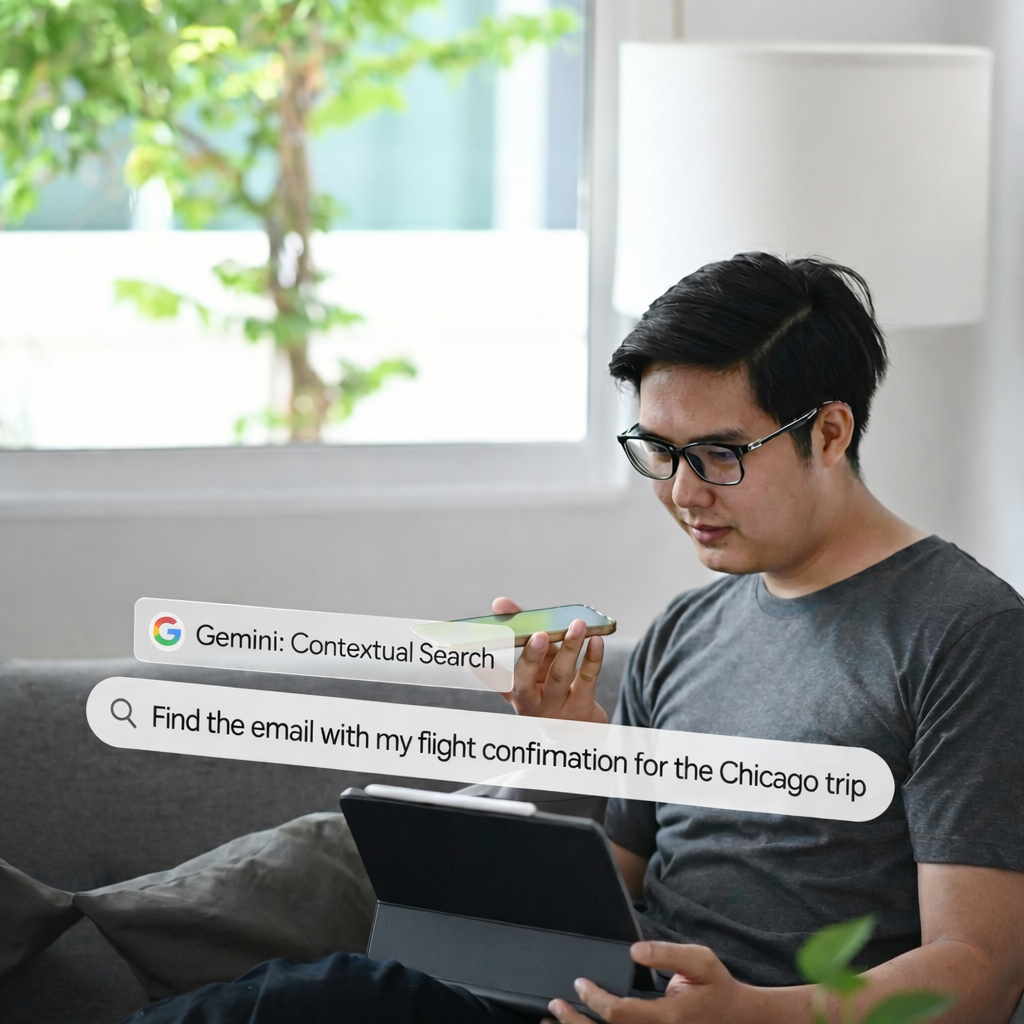
The paid plans add the features that read across your whole inbox instead of one email.
AI answers in search let you type a question like "When is my flight to Hawaii?" and get a short answer above the results. It works in English, went global for paid plans in September, and isn't available for personal accounts in the EEA, the UK, Switzerland, or Japan. Google notes it won't kick in if you use search operators like is:unread.
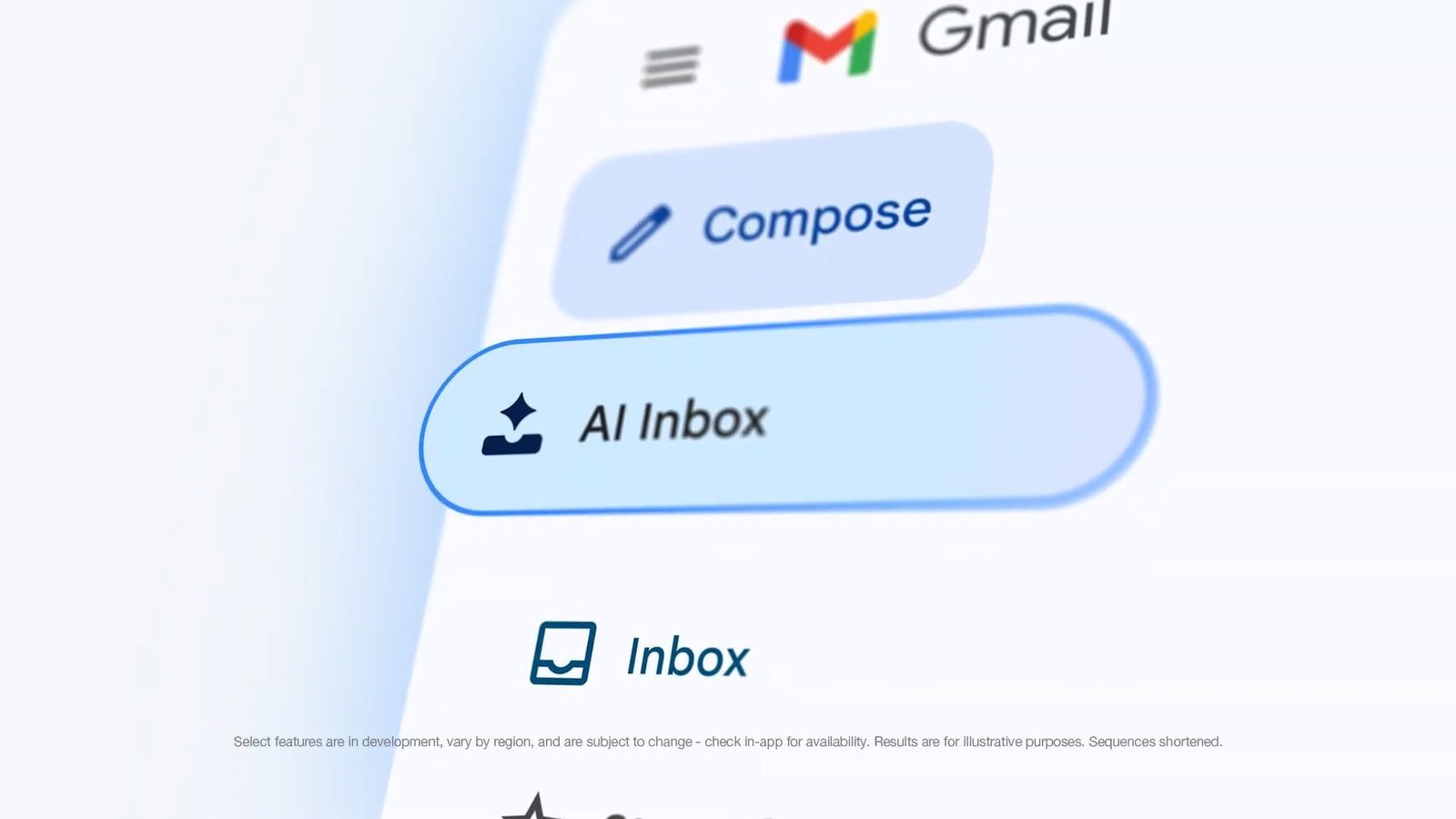
AI Inbox is still in beta, US and English only. It pulls suggested to-dos and topics to catch up on from your Primary tab, and Google says the first batch can take up to 7 days to show up. We have a separate post on who AI Inbox is actually for.
Proofread suggests tone and style fixes beyond spelling, and Gmail Live, new in September, lets you ask the Gmail mobile app questions out loud, like "What's my flight's gate number?" It's rolling out on the paid plans, starting in the US.
How to turn off Gmail AI

Gmail splits this across three smart features settings, and the one Google's help pages point to for Gemini is called Smart features in Google Workspace.
On a computer
- In Gmail, click the gear icon at the top right, then See all settings.
- On the General tab, scroll to Smart features and uncheck Turn on smart features in Gmail, Chat, and Meet.
- Still on General, find Google Workspace smart features and click Manage Workspace smart feature settings.
- Turn off Smart features in Google Workspace, and Smart features in other Google products if you want that off too.
On an iPhone or iPad
Tap Menu at the top left, then Settings. Under General, tap Data privacy and turn off Smart features. Then tap Google Workspace smart features, turn off the two settings there, and tap Done.
On Android
Tap Menu at the top left, then Settings, and pick your account. Under General, uncheck Smart features. Then tap Google Workspace smart features and uncheck the two boxes.
Google says changes apply on every device you're signed in to. If you live in the EEA, the UK, Switzerland, or Japan, these settings start off by default.
What you lose when you turn it off
Each switch takes more than Gemini with it, so it's worth knowing before you click.
- Smart features in Gmail, Chat, and Meet: your Primary, Social, and Promotions tabs, Smart Compose, Smart Reply, and the package tracking and travel cards above emails.
- Smart features in Google Workspace: Gemini summaries and drafts, events from Gmail showing up in Calendar, and personalized search in Drive.
- Smart features in other Google products: Personal Intelligence in the Gemini app, which feeds things like the Gemini Daily Brief, plus some Maps and Wallet features.
Summaries can't be turned off on their own. Google says turning off smart features to stop them "also disables other tools, such as AI-assisted writing and proofreading."
Some features do have their own switch, so you can keep the rest. Uncheck Show AI Inbox under Settings, then Inbox. Turn Proofread off with Grammar suggestions off on the General tab, which also stops regular grammar suggestions, and Smart Compose with Writing suggestions off.
Does Google use your email to train its AI?
Not from Gmail itself, according to Google. Its privacy page says "We do not use your Workspace data to train or improve the underlying generative AI and large language models that power Gemini, Search, and other systems outside of Workspace without permission," and "Your content is not used for ads targeting."
The exception is the Gemini app. If you connect Gmail to it, for the Daily Brief or Personal Intelligence, Google says "summaries, excerpts, generated media, and inferences" from your emails may be used, and that a subset of that connected apps data "is reviewed by human reviewers." That's the connection to think about, more than the buttons inside Gmail. Google's smart features page also says that when they're on, "your data may be used to improve these features."
Gmail AI FAQ
Prefer a video? Kevin Stratvert's walkthrough covers the writing features, though it's from January, so a few menus have moved since.
 Watch this video on YouTube
If you only want one thing gone, check whether it has its own switch first, because the big smart features settings take your inbox tabs with them.